Notifications
Stay ahead of what matters — get notified by email when the market moves, sentiment shifts, or your company appears in the news.
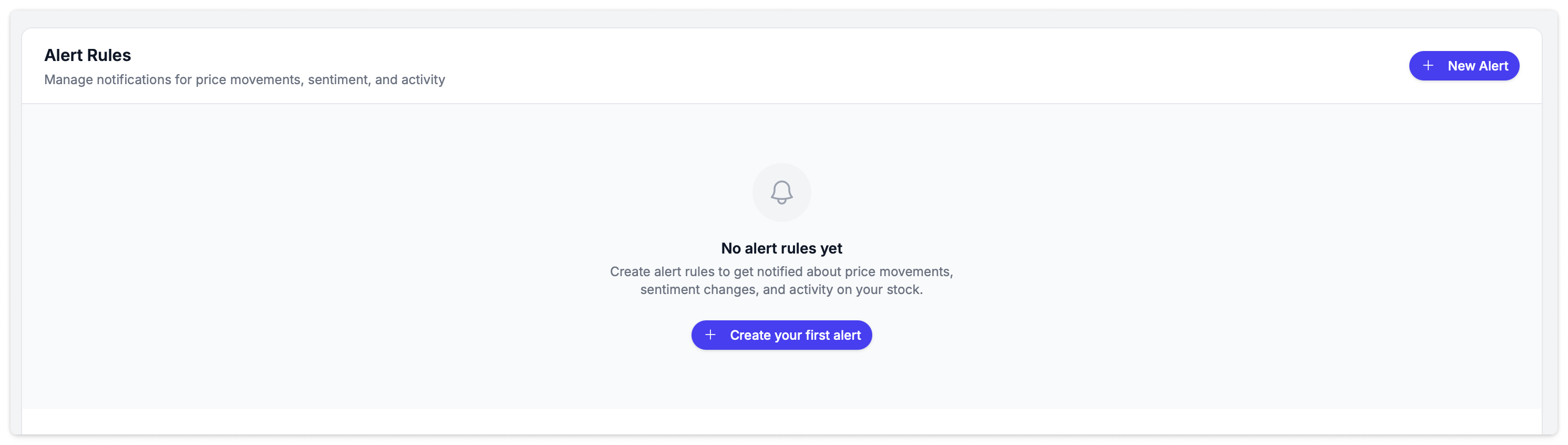
Notifications are split into two categories: Real-time Alerts that trigger as events happen, and Scheduled Summaries that deliver periodic overviews.
Real-Time Alerts
Real-time alerts trigger as events happen — price movements during trading hours, new media articles, or sentiment shifts in social activity. Each alert sends an email from alerts@qback.au with details and direct links to the relevant content in Quarterback.
Price Movement
Triggers when your share price moves beyond a set percentage from the opening price during trading hours.
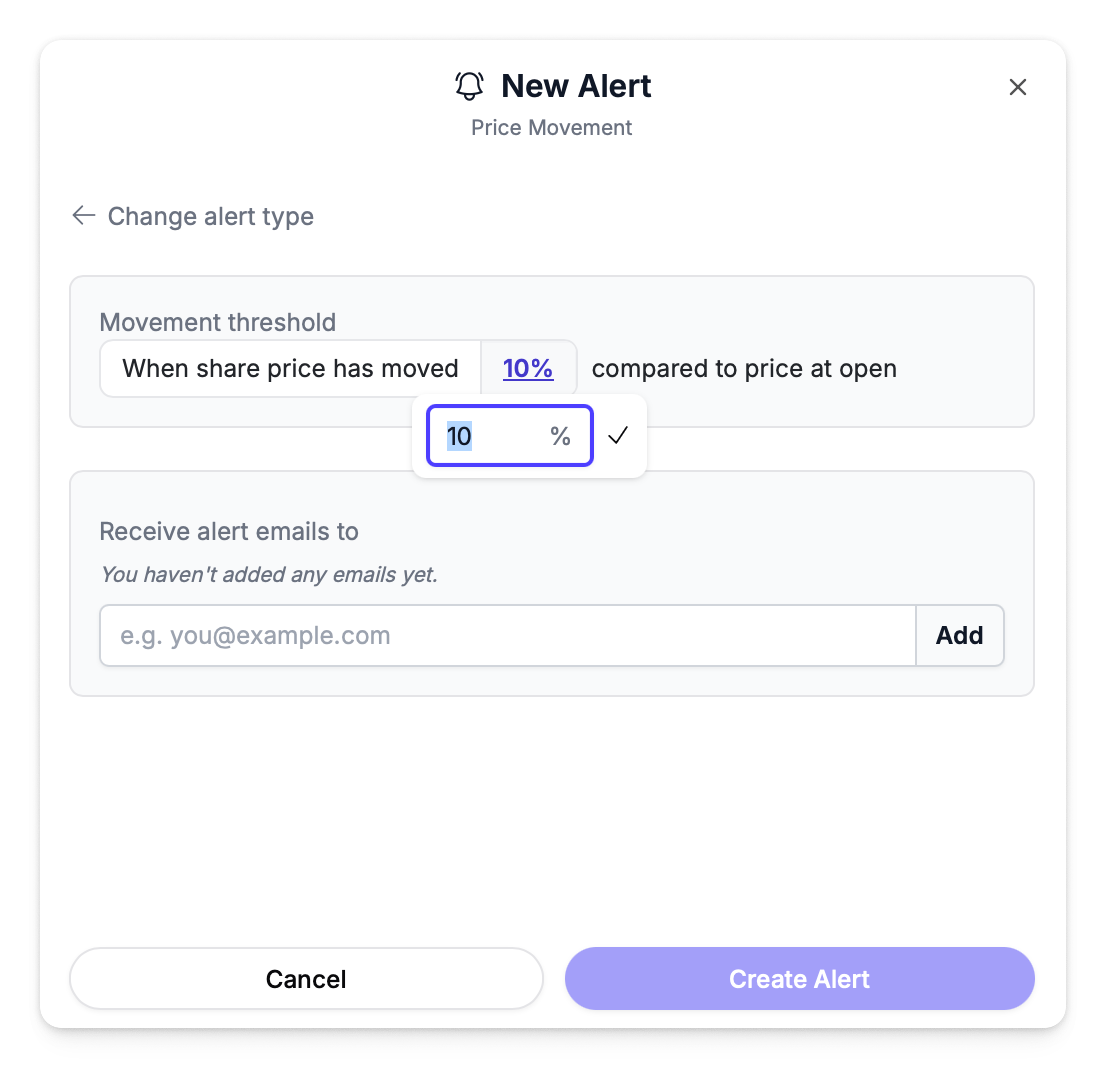
| Setting | Description |
|---|---|
| Movement threshold | Percentage move from open (e.g., 10%) |
How it works: The platform checks your share price while the market is open. When the percentage change from open exceeds your threshold, an email is sent with the current price and percentage change.
Example: "When share price has moved 10% compared to price at open"
This is a straightforward percentage-based alert — useful for catching large intraday moves. For a more sophisticated statistical approach, see Unusual Price Movement below.
Price Movement alerts have a 12-hour cooldown. Once triggered, the same rule won't fire again for 12 hours to avoid repeated notifications on volatile days.
Unusual Price Movement
Triggers when abnormal returns exceed statistical thresholds, based on Z-score analysis of your stock's returns relative to its benchmark. Days with ASX announcements are automatically excluded, helping you surface unexplained movements that may warrant investigation.
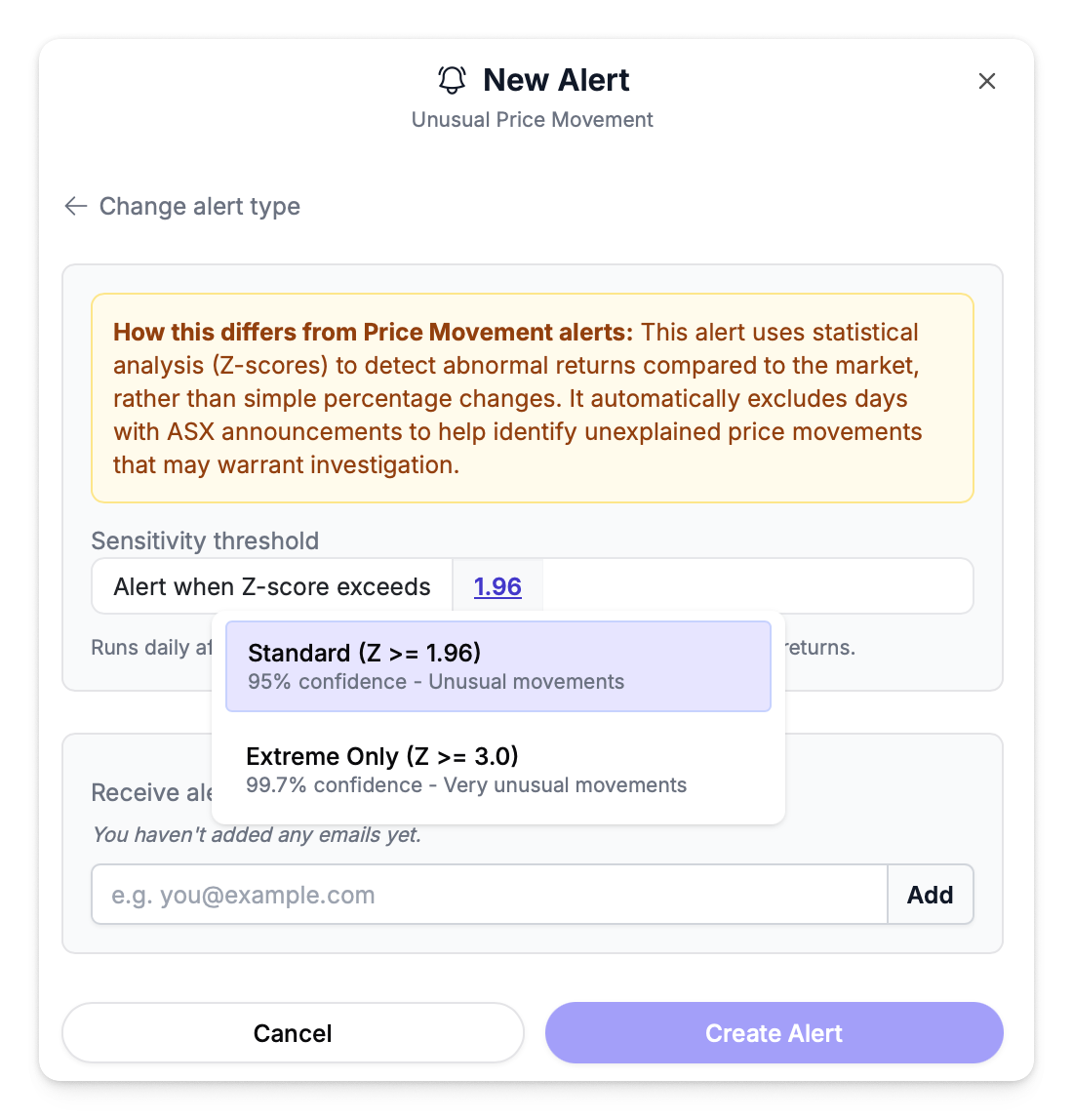
| Setting | Options |
|---|---|
| Sensitivity | Standard (Z >= 1.96) — 95% confidence, unusual movements (default) |
| Extreme Only (Z >= 3.0) — 99.7% confidence, very unusual movements |
How it works: Runs daily after market close. The platform calculates expected returns using the CAPM model and your configured benchmark, then compares actual returns against this expectation. If the resulting Z-score exceeds your sensitivity threshold and there were no ASX announcements that day, the alert triggers. Maximum one alert per day.
How it differs from Price Movement: This alert uses statistical analysis (Z-scores) to detect abnormal returns compared to the market, rather than simple percentage changes. A 3% move might be normal for a volatile micro-cap but highly unusual for a blue chip — Z-scores account for this context.
Extreme movements (Z >= 3.0) are flagged as urgent in the email with additional detail on the abnormal return and statistical significance.
Sentiment
Triggers when new activities are detected with sentiment scores above or below your threshold.
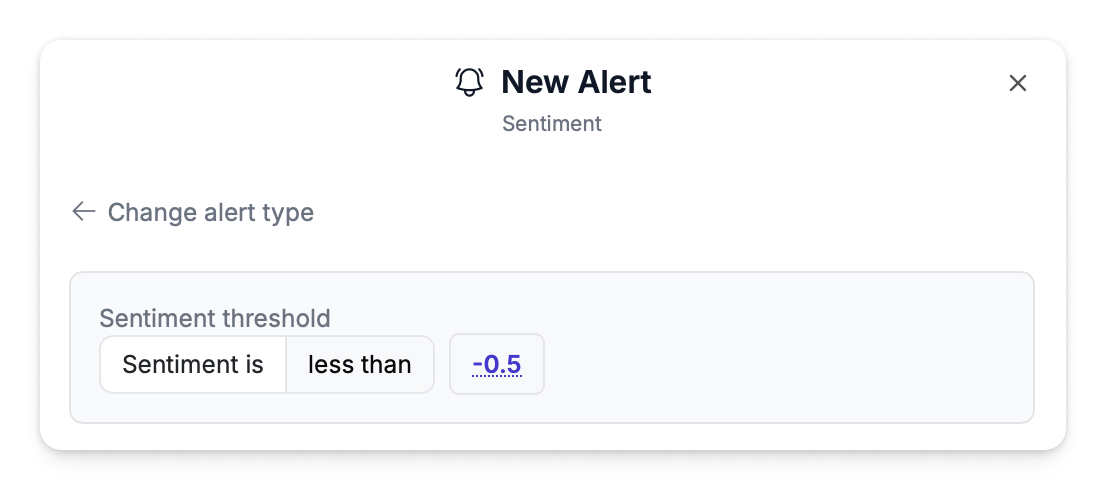
| Setting | Description |
|---|---|
| Direction | More than or Less than |
| Threshold | Sentiment score from -1 to +1 (default: 0.75) |
How it works: As new activities are ingested and scored, the platform checks each activity's sentiment against your rules. Matching activities are grouped and sent in a single email with content previews and sentiment scores.
Example: "When sentiment is more than 0.75" catches highly positive activity. "When sentiment is less than -0.5" catches negative discussion worth investigating.
Activity Level
Triggers when activity volume increases by a set percentage compared to the previous period.
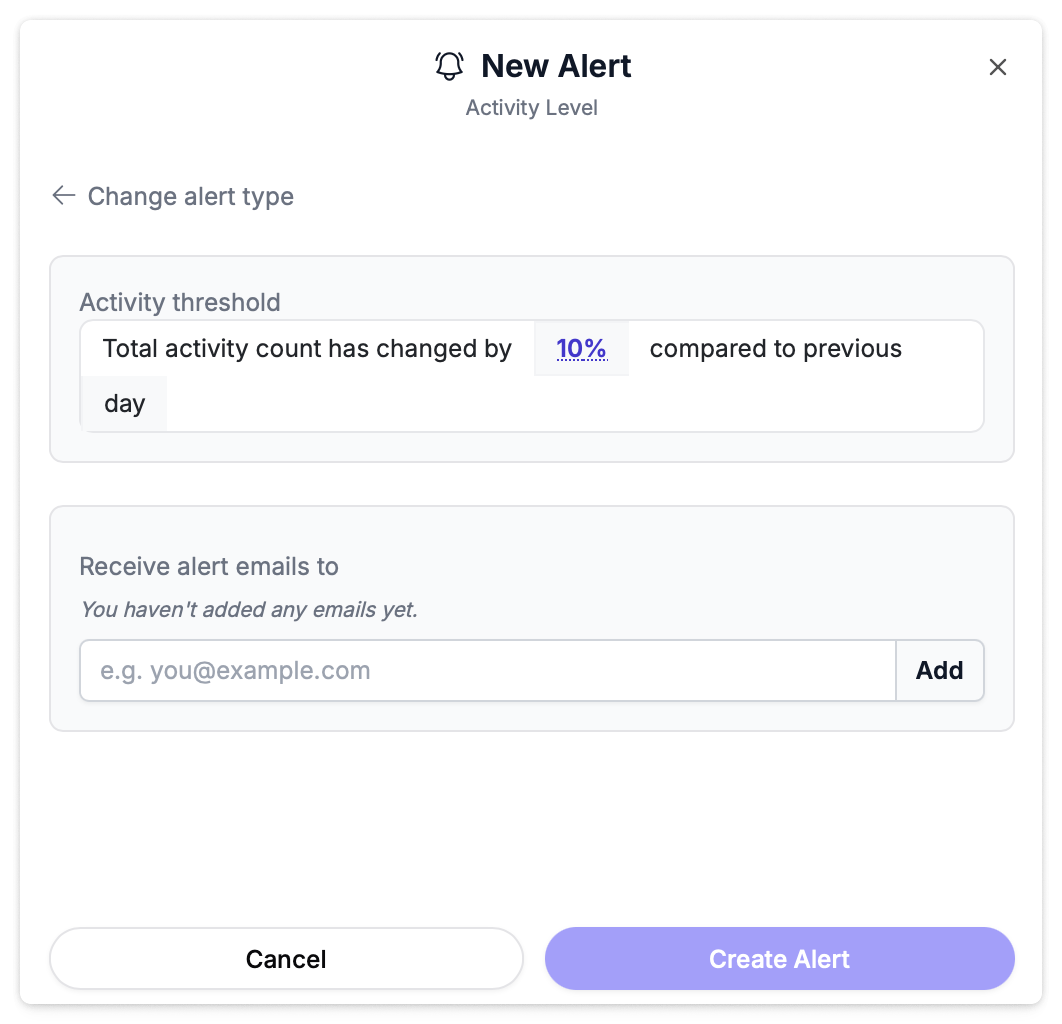
| Setting | Description |
|---|---|
| Threshold | Percentage increase (e.g., 10%) |
| Comparison interval | Day, Week, or Month |
How it works: The platform compares total activity count for the current period against the same length period immediately before it. If the increase exceeds your threshold, the alert fires. Runs once per calendar day maximum.
Example: "When total activity count has changed by 50% compared to previous day" — useful for detecting sudden spikes in conversation volume that may indicate breaking news or a viral post.
Broad Search
Triggers when new activities match a keyword or topic using AI-powered semantic search. This goes beyond exact keyword matching — it understands related concepts and themes.
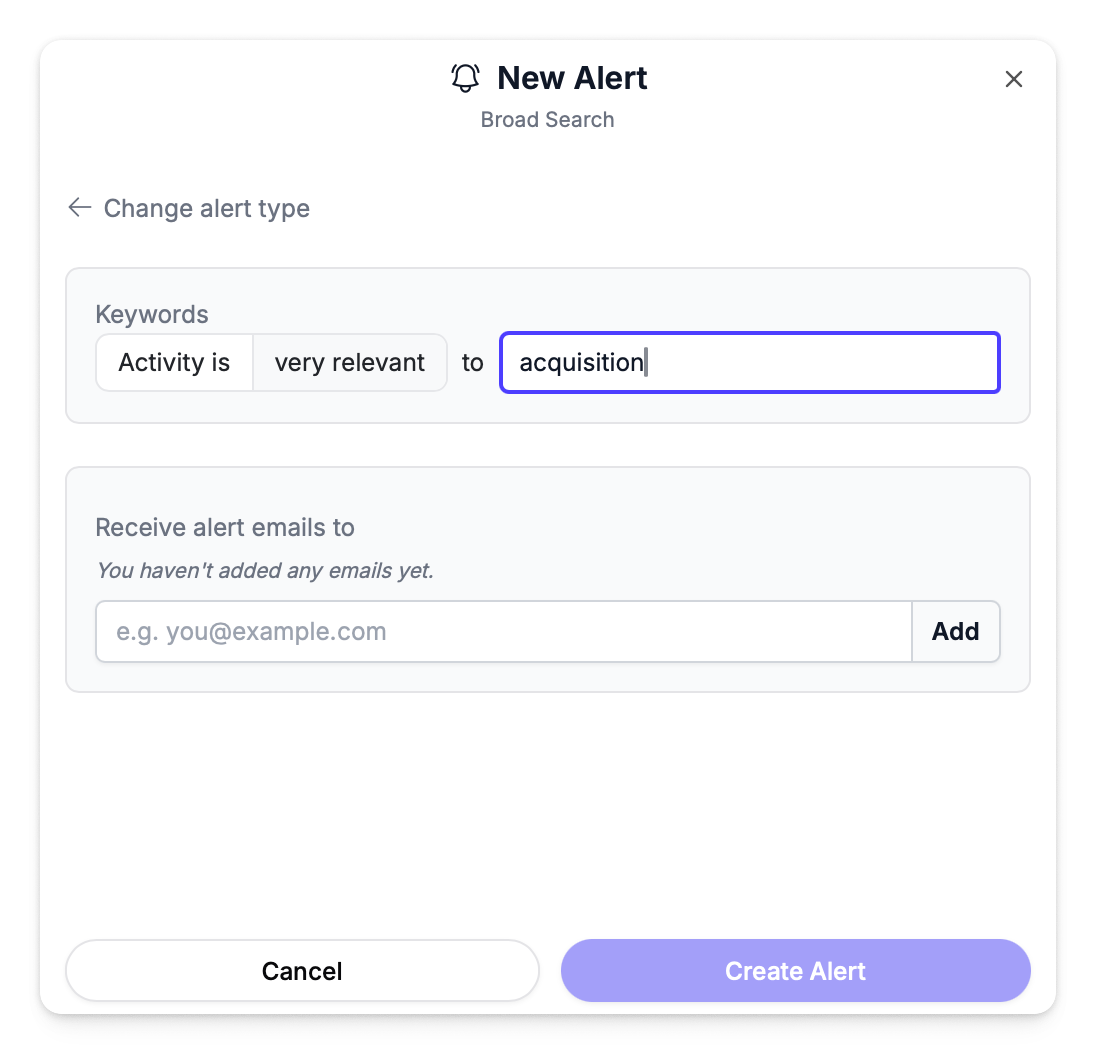
| Setting | Description |
|---|---|
| Keywords | The topic or term to monitor (e.g., "Acquisition", "CEO departure") |
| Relevance | Very relevant (default), Moderately relevant, or Somewhat relevant |
How it works: Your keyword is converted into an AI embedding (using OpenAI) and matched against incoming activities using vector similarity search. This means results include conceptually related content — not just exact keyword matches. Lower relevance thresholds cast a wider net.
Example: "When activity is very relevant to 'capital raise'" — would match posts discussing fundraising, equity placements, share dilution, and similar topics even if they don't contain the exact phrase.
Media Activity
Triggers whenever new media articles are published about your company. No threshold to configure — you'll be notified of every article.
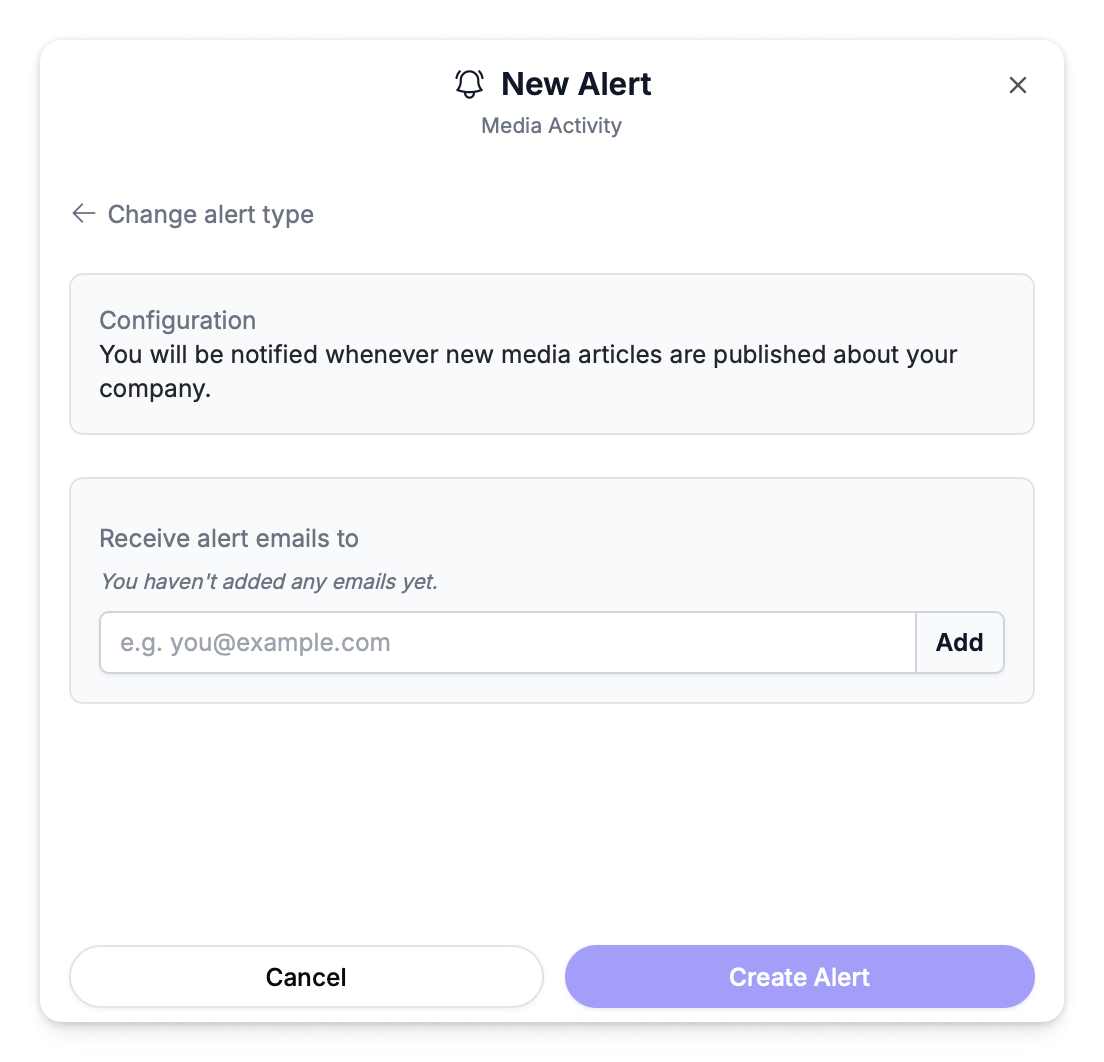
How it works: As new media articles are ingested from tracked news sources, the platform immediately sends an email with the article details and sentiment score. This is the simplest alert type and one of the most useful — it ensures you never miss news coverage.
Scheduled Summaries
Scheduled summaries are delivered on a recurring schedule rather than being triggered by events. They provide a comprehensive AI-generated overview of activity, sentiment, and market movements for a period.
Daily Recap
A comprehensive daily summary delivered at your chosen time. The email includes:
- Share price at close with daily change
- Sentiment score with trend label (Positive, Neutral, Lacking, or Negative)
- Activity count compared to the previous day
- Alerts triggered during the day with a breakdown by type
- AI-generated bullet points summarising key themes
- Investor sentiment analysis — AI-generated paragraphs on sentiment trends
- Notable activities — top 3 positive chatter, top 3 negative chatter, and top 2 media highlights
| Setting | Description |
|---|---|
| Time | Delivery time in 24-hour format (default: 6:00 PM) |
| Timezone | Your timezone (default: Australia/Sydney) |
| Media only | When enabled, only includes media articles — no social or chatter |
If no activities are detected for the day, you'll still receive the recap with share price data and a note that no mentions were found.
Weekly Recap
Same structure as the Daily Recap but covering the past 7 days with week-over-week comparisons. Includes up to 5 notable activities per category instead of 3.
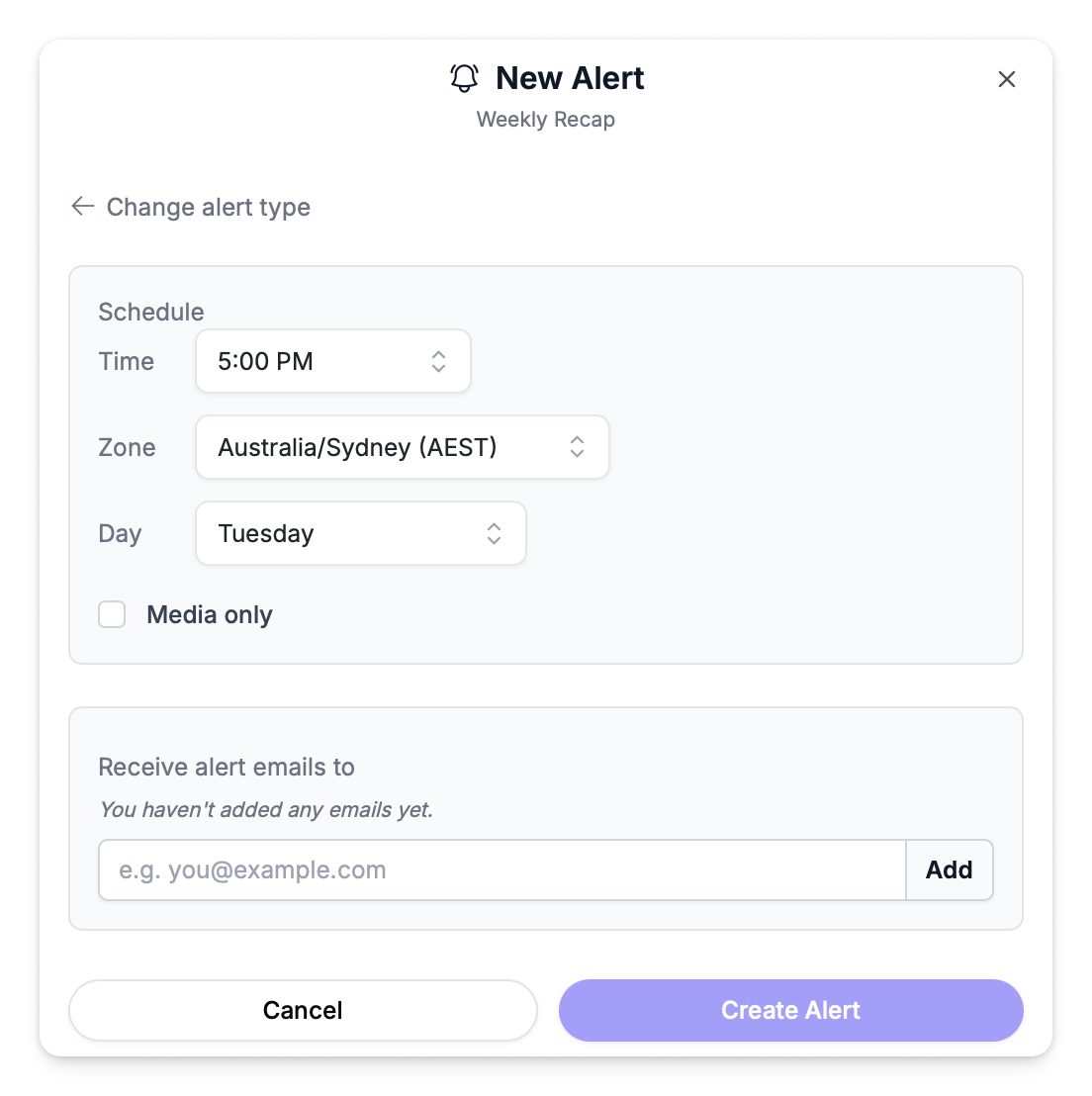
| Setting | Description |
|---|---|
| Day | Which day to deliver (default: Monday) |
| Time | Delivery time (default: 6:00 PM) |
| Timezone | Your timezone (default: Australia/Sydney) |
| Media only | When enabled, only includes media articles |
Creating a Notification
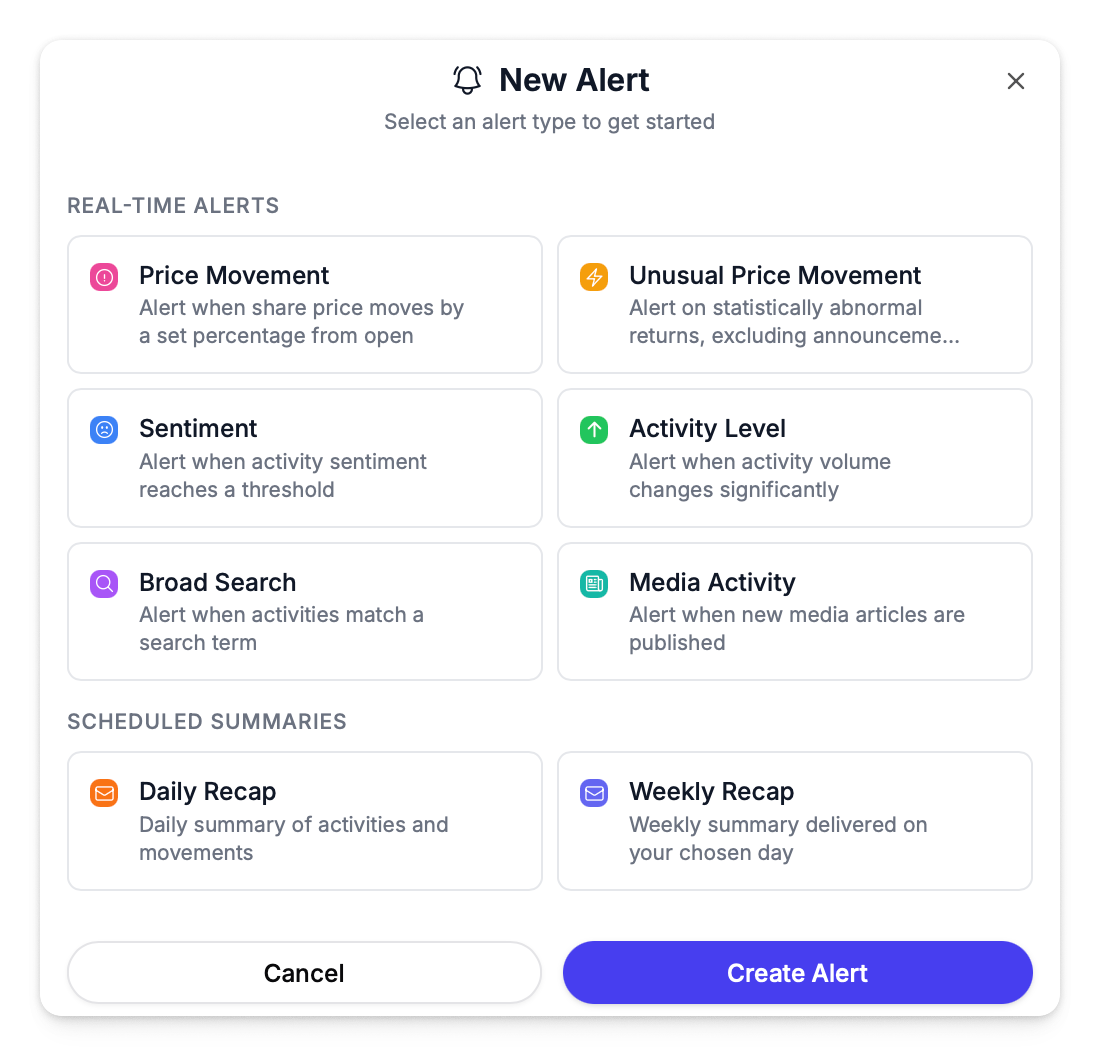
- Navigate to Notifications in the sidebar
- Click New Alert
- Select the alert type — Real-time Alerts on the left, Scheduled Summaries on the right
- Configure the threshold or trigger condition
- Add one or more email recipients — type an email address and press Enter to add it
- Click Save
You can add multiple email recipients to any alert. Each recipient receives their own copy of the notification email.
Start with a Daily Recap and a Media Activity alert. The recap gives you a daily pulse, and media alerts ensure you never miss news coverage.
Managing Notifications
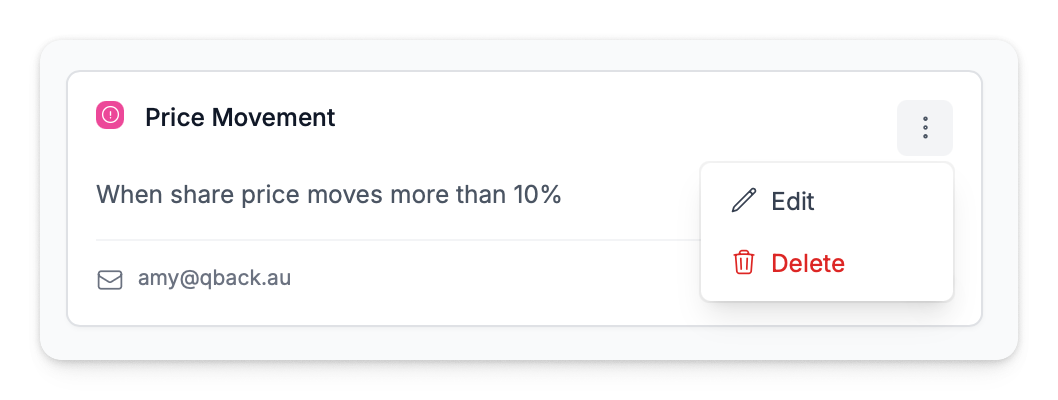
Each alert appears as a card on the Rules tab showing the alert type, trigger condition, and recipients.
Editing an Alert
Click any alert card to open the edit form. You can change:
- Thresholds — adjust sensitivity, percentage, or score thresholds
- Recipients — add or remove email addresses
- Schedule — change delivery time, timezone, or day (for recaps)
- Media only — toggle media-only mode on recaps
Click Save to apply changes.
Pausing and Resuming
Each alert card has an Active / Paused toggle. Pausing an alert stops it from triggering without deleting the configuration — useful when you want to temporarily silence notifications (e.g., during a planned announcement period) without losing your setup.
Deleting an Alert
Click the alert card to open the edit form, then click Delete to permanently remove the alert. This cannot be undone.